Channels
Deploy your agent across multiple channels including website, WhatsApp, SMS, Instagram, Messenger, Slack, and voice.
Channels are the different ways customers can interact with your agent. Link AI supports multiple channels, allowing you to create one agent and deploy it across all your channels while maintaining consistent behavior and full functionality.
One Agent, All Channels
Unified Agent Experience Create a single agent and deploy it across all your channels: website, WhatsApp, SMS, Instagram, Messenger, Slack, and voice. Your agent maintains the same knowledge, capabilities, and behavior regardless of which channel customers use to interact.
Full Functionality Across Channels Your agent can take actions and use integrations on any channel:
- Smart Forms: Collect structured information through conversational interactions
- Web Search: Search the web for real-time information
- Orders: Process product orders and payments
- Calendar: Book appointments and check availability
- Smart Tickets: Create support tickets for escalation
- Smart Emails: Send custom emails to users
- Integrations: All integrations (like AviationStack, Stripe, Zapier, and more) work seamlessly across all channels
All actions and integrations work seamlessly across all channels, so customers get the same powerful experience whether they're chatting on your website, messaging on WhatsApp, or calling on the phone.
Future-Proof Functionality Link AI will continue to add new actions and integrations, and they will all work across all channels automatically. You don't need to configure channel-specific settings for new features. They work everywhere your agent is deployed.
Channel-Aware Responses Your agent is intelligent and channel-aware. It understands the context and capabilities of each channel and adapts its responses accordingly:
- Chat channels (Website, WhatsApp, SMS, Instagram, Messenger, Slack): Can include rich content, formatting, and detailed responses
- Voice channel: Provides concise, conversational responses optimized for spoken interaction
Your agent automatically adjusts its communication style based on the channel while maintaining the same core knowledge and capabilities.
Supported Channels
Website Embed a chat widget on your website for instant customer support. Customers can start conversations directly from your site without leaving the page.
Security Required: Web widgets require domain whitelisting. You must configure allowed domains before your widget will load. This protects against unauthorized use and abuse. Learn more about embedding
WhatsApp Connect WhatsApp Business for messaging support. Customers can message your business directly through WhatsApp, and your agent responds automatically. See WhatsApp Integration for detailed setup instructions.
SMS Enable text messaging support so customers can reach you via SMS. Useful for customers who prefer texting over other communication methods.
Instagram Enable Instagram Direct Messages integration. Customers can message your business on Instagram, and your agent handles responses automatically. See Meta Integration for setup instructions.
Messenger Connect Facebook Messenger for customer support. Customers can message your Facebook Page, and your agent responds through Messenger. See Meta Integration for setup instructions.
Voice (Phone) Set up phone number integration for voice calls. Customers can call your business, and your agent handles the conversation through natural voice interaction. See Phone for detailed configuration and setup instructions.
Slack
Bring your agent into your team's Slack workspace. Team members can DM the bot, @mention it in channels, continue conversations in threads, or use /ally from anywhere. Slack is connected from Integrations, not the agent Channels tab. You choose whether Ally or one specific custom agent answers all Slack traffic for that workspace. See Slack Integration for setup and troubleshooting.
Outlook Connect an Outlook or Microsoft 365 mailbox from Integrations, then enable Outlook on the agent Deploy tab. The agent replies in that mailbox. Threads appear in the Inbox under the Outlook filter. Connecting the workspace is not enough. Deploy must be on before the agent answers. See Outlook Integration.
Channel Configuration
Enable Channels
- Navigate to your agent's configuration
- Go to the Channels section
- Toggle on the channels you want to enable
- Complete channel-specific setup for each enabled channel
Channel-Specific Setup
Each channel requires different configuration:
Website
- REQUIRED FIRST: Configure allowed domains in Domain Security Settings
- Copy the embed code provided (only available after adding domains)
- Add the code to your website
- Customize widget appearance (colors, position, etc.)
- Configure welcome message and behavior
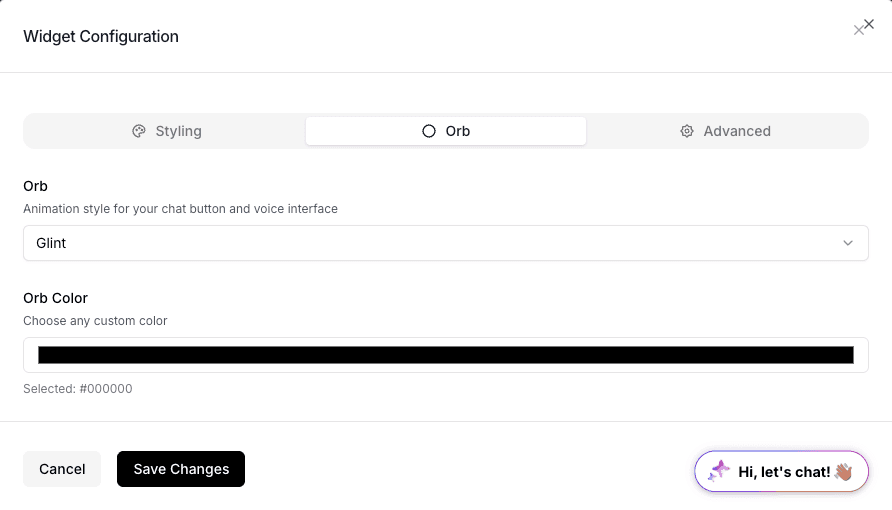
- Configure the orb used for voice mode to make it branded. The orb moves and responds with the sound of voice.
Important: You must add your website domain to the allowed domains list before the widget will load. Use *.domain.com for all subdomains. View detailed embedding guide
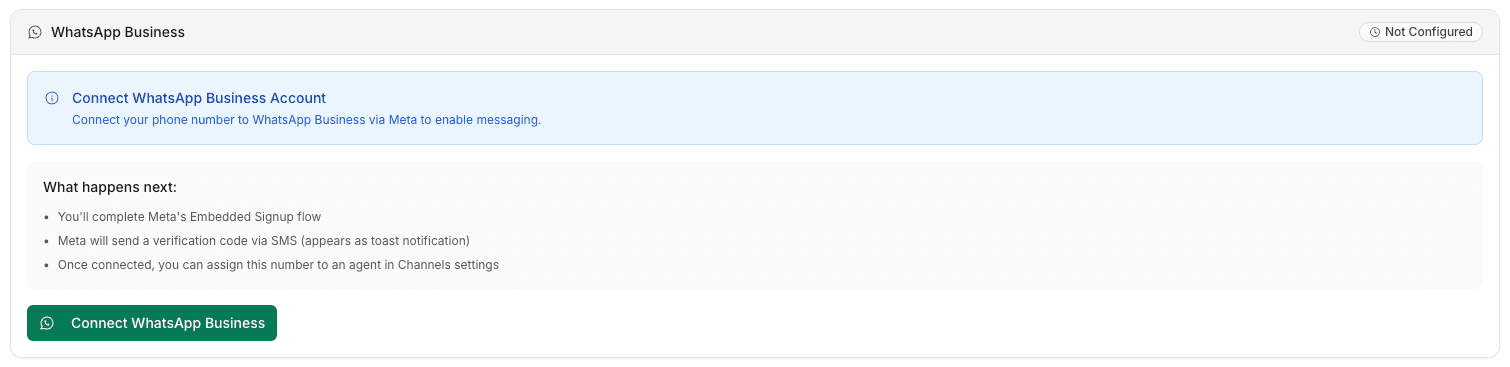
- WhatsApp requires registration before use
- Connect your WhatsApp Business account
- Verify phone number
- Configure messaging templates
For detailed instructions, see WhatsApp Integration.
SMS
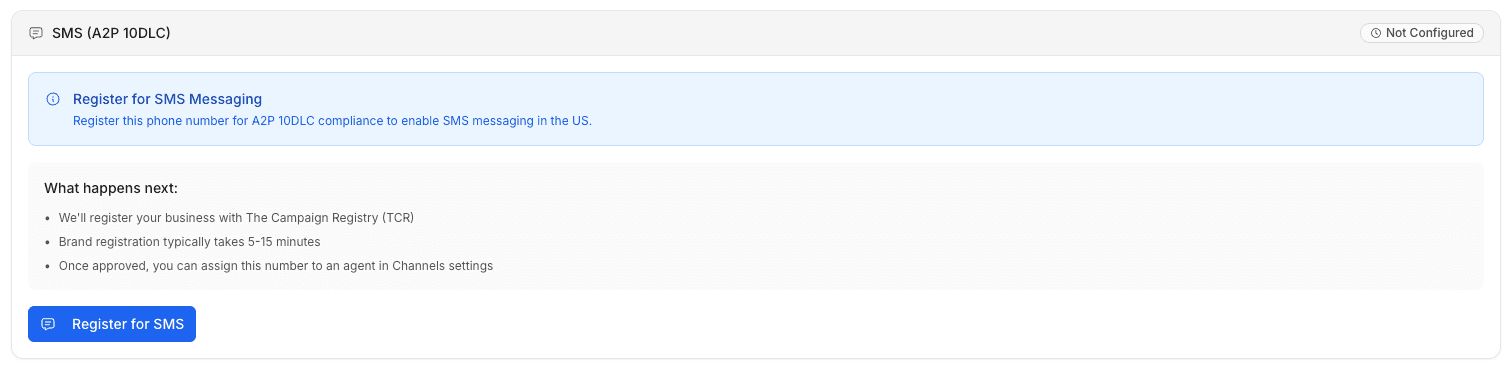
- SMS requires A2P 10DLC registration before use
- Registration costs: $41.00-$65.00 one-time fee
- Monthly fee: Up to $10/month
- Phone number purchase fee: Additional fee for purchasing a phone number
- Configure phone number
- Set up messaging rules
- Configure delivery settings
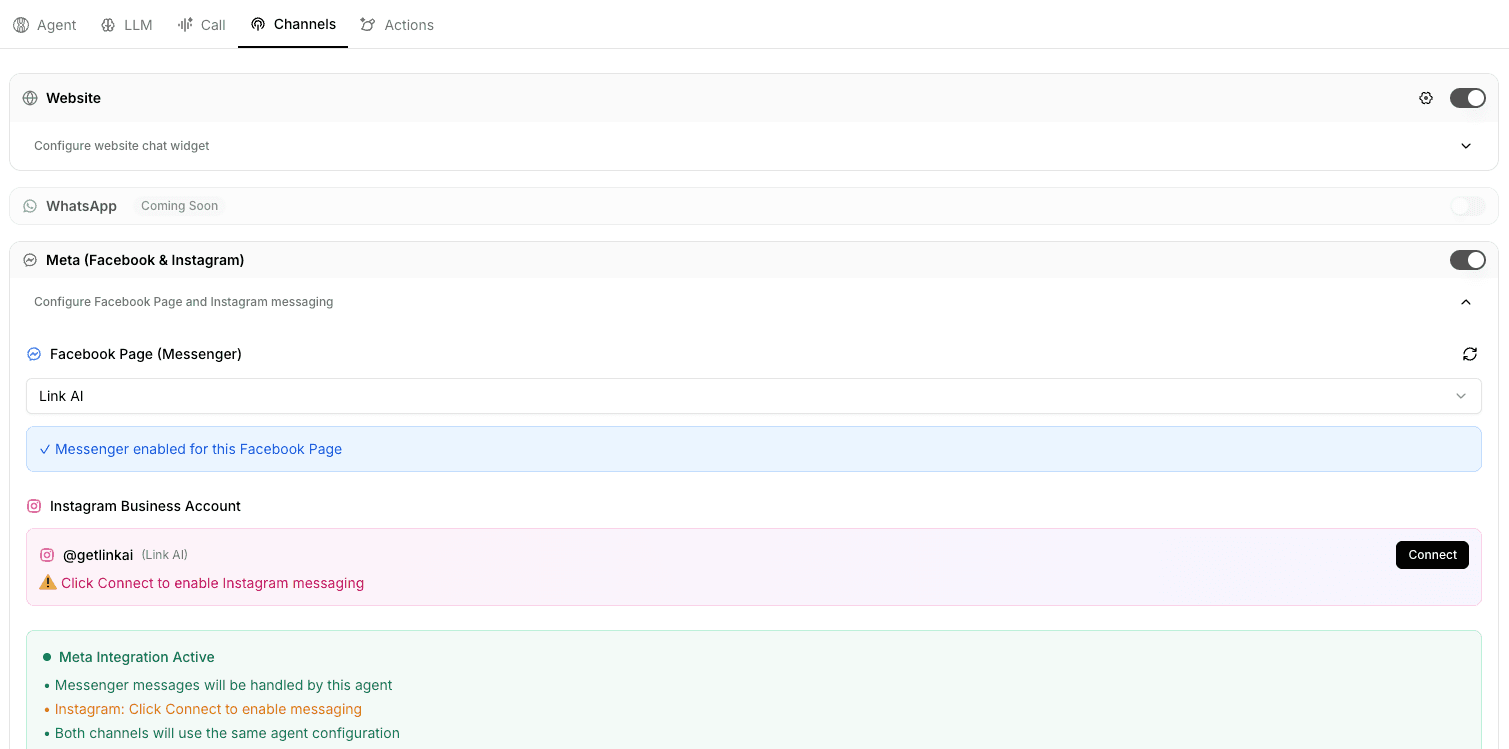
Instagram & Messenger
- Connect one Meta account per Link AI account
- Connect your Facebook Page
- Link your Facebook Page with your Instagram page (required for the agent to be available on both channels)
- Configure messaging settings
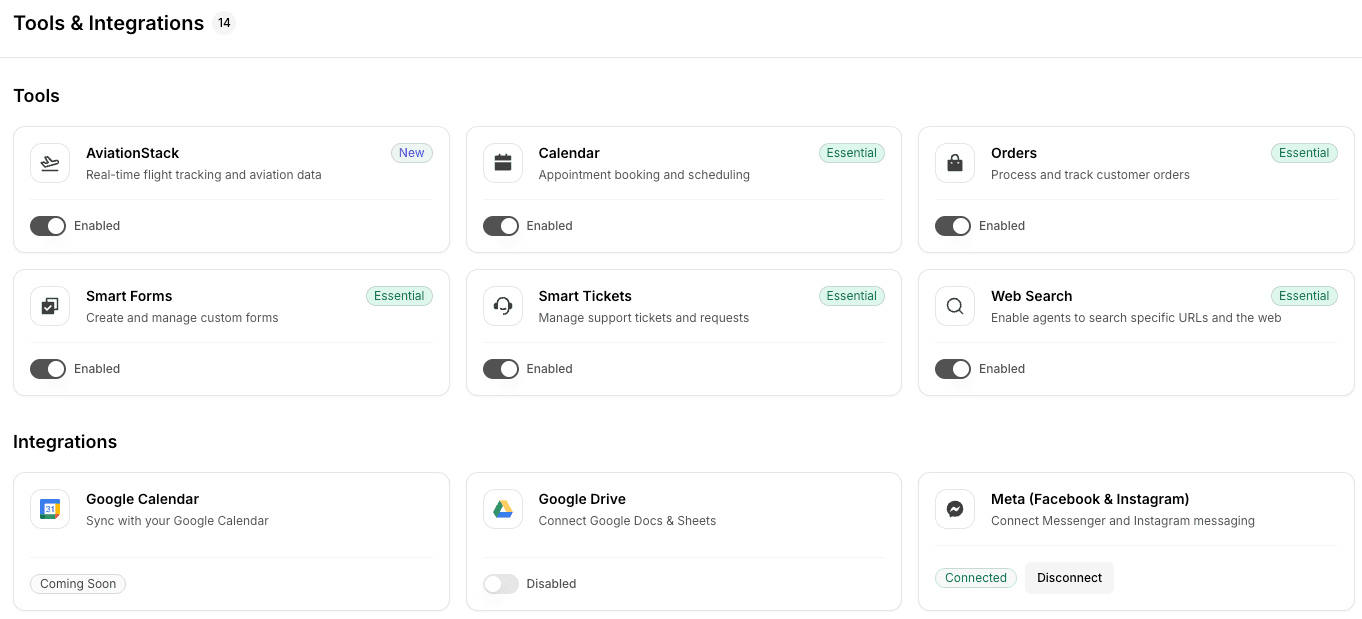
Important: You connect one Meta account per Link AI account. The Facebook Page must be connected with the Instagram page in order for your agent to be available on both Instagram and Messenger.
For detailed instructions, see Meta Integration.
Voice
Important: Voice Mode must be enabled in the Call tab before any voice interactions (web voice or phone calls) can reach your agent. When Voice Mode is disabled, no calls or voice interactions will be processed.
Voice has two modes: web voice and phone.
Voice Mode Availability
- Free trial: Available for testing
- Growth plan: Fully available
- Scale plan: Fully available
Enabling Voice Mode
- Navigate to your agent's Call tab
- Enable the Voice Mode toggle
- Configure voice settings
- Test voice interactions
Web Voice Mode
- Configure the voice on the Call tab
- Voice settings apply to web-based voice interactions
- Customers can use voice in the web widget
Phone Number Mode
- Purchase a phone number (one-time purchase)
- Go to the Call tab and assign the phone number to the agent
- Once assigned, place a test call to verify the integration is complete
- The agent will respond with the configured call settings
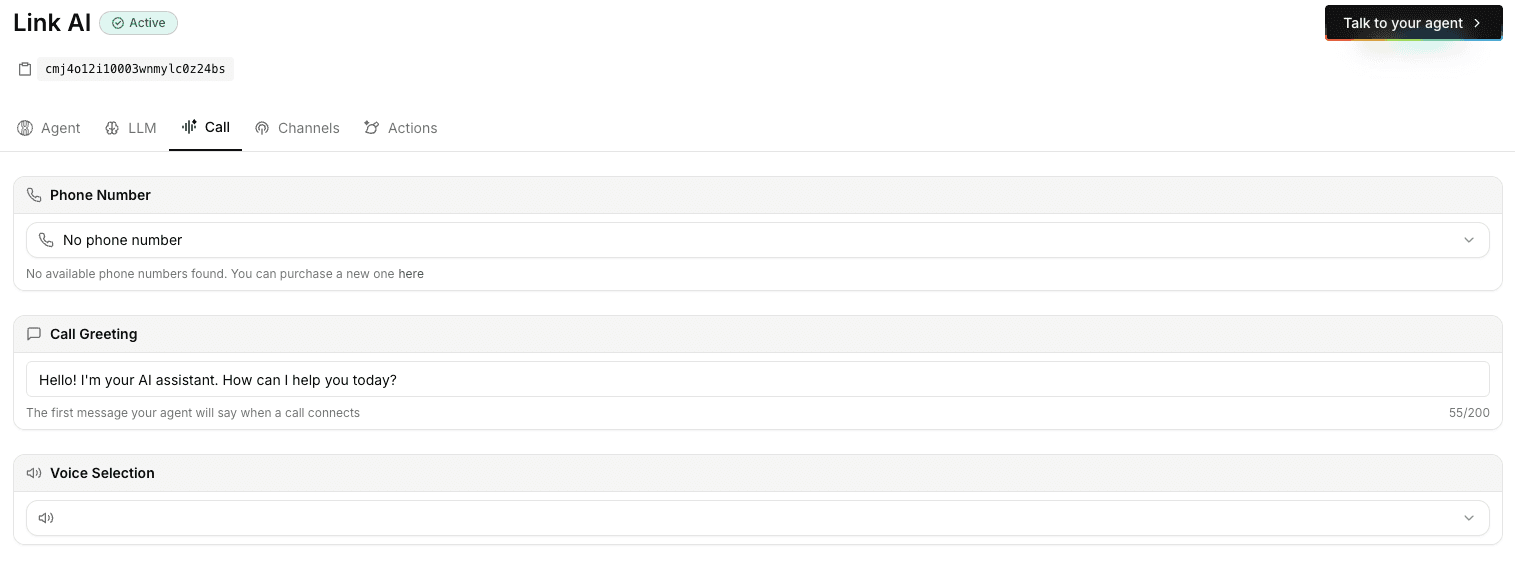
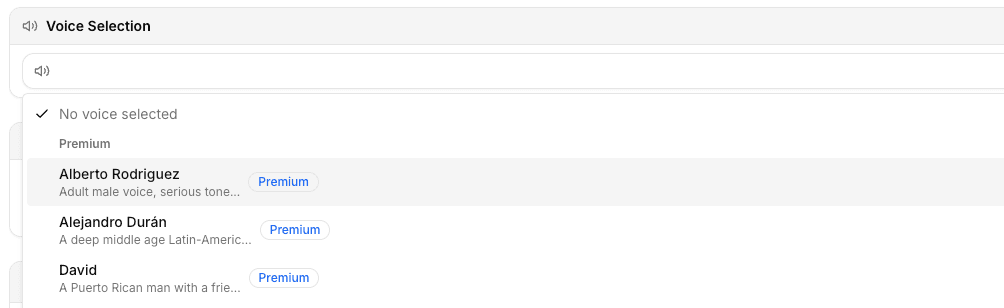
Voice Configuration
- Select from over 50 premium and included voices that sound human
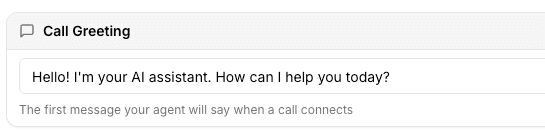
- Configure the greeting where the agent responds
- Set response rate, silence timeout, and call timeout
For detailed instructions, see Phone.
Slack
- Open Dashboard → Integrations → Slack and click Connect.
- Authorize Link AI for your Slack workspace.
- In the Slack tile, assign Ally or one of your custom agents as the responder.
- In Slack, invite the bot to channels where you want @mentions, then DM the bot or use
/ally your question.
Only one agent (Ally or a custom agent) answers per Slack connection. To use a different agent, change the assignment in the Slack tile; the previous choice clears automatically.
For detailed instructions, see Slack Integration.
Outlook
- Open Dashboard → Integrations → Outlook and click Connect.
- Authorize the Microsoft mailbox.
- Open the agent → Deploy and enable Outlook.
- Choose the send-as address if more than one is available.
Connecting Outlook only unlocks the channel for the workspace. The agent will not reply until Deploy is enabled.
For detailed instructions, see Outlook Integration.
Human takeover
Any Inbox thread can be taken over by a person. The agent pauses on that conversation so you can reply yourself, across chat, WhatsApp, Instagram, Messenger, SMS, Outlook, and calls.
- Open the conversation in the Inbox.
- Click Take over conversation.
- Write and send as a human. For email, reply in the thread or start a new message with a subject.
- Click Hand to Agent when you want the agent to resume. The bar shows "You're talking as yourself. Agent is paused." while you are in control.
Takeover is per conversation. Other threads keep using the agent. See Outlook for mailbox threads.
Multi-Channel Strategy
Consistent Experience Your agent provides a consistent experience across all channels. Customers get the same quality of service and access to the same actions whether they contact you via website, WhatsApp, SMS, Instagram, Messenger, Slack, or phone.
Channel Preferences Different customers prefer different channels. Offering multiple channels ensures you can reach all your customers where they're most comfortable, while maintaining a unified agent experience.
Unified Conversations All conversations are tracked in your dashboard, regardless of channel. You can see customer interactions across all channels in one place, making it easy to understand customer needs and preferences.
Unified Inbox All channels are viewed in a single inbox page where you can see all conversations from every channel in one place. This unified inbox makes it easy to manage customer interactions regardless of which channel they use to contact you.
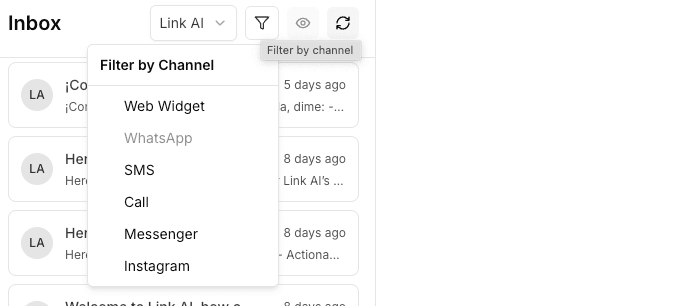
Context Preservation When customers switch channels, your agent maintains context from previous interactions. This provides a seamless experience even when customers use multiple channels to interact with your business.
Best Practices
Enable Relevant Channels Enable channels your customers actually use. Don't enable channels you can't support effectively. Start with your most-used channels and expand as needed.
Configure Each Channel Properly Take time to configure each channel correctly. Poor configuration leads to poor customer experiences. Follow the specific setup instructions for each channel.
Test Across Channels Test your agent on each enabled channel to ensure consistent behavior and proper functionality. Verify that actions work correctly on each channel.
Monitor Channel Performance Review analytics to see which channels are most used and how performance varies across channels. Use this data to optimize your multi-channel strategy.
Optimize Per Channel While maintaining consistency, optimize for each channel's strengths:
- Use rich content in chat channels (buttons, cards, images)
- Keep voice responses concise and conversational
- Leverage channel-specific features (e.g., WhatsApp templates, Instagram stories)
Troubleshooting
Channel Not Working
- Verify the channel is enabled in agent configuration
- Check channel-specific setup is complete
- Review connection status (for integrated channels)
- Check error logs for specific issues
Inconsistent Behavior
- Verify agent configuration is the same across channels
- Check channel-specific settings don't conflict
- Test the same query across channels to compare behavior
- Review system prompt for channel-specific instructions
Integration Issues
- Verify connection credentials are correct
- Check that the integration is properly connected
- Review provider-specific documentation
- Test the integration to verify it's working
Next Steps
- Set up Phone for voice interactions
- Configure WhatsApp Integration for messaging
- Connect Meta Integration for Instagram and Messenger
- Connect Slack Integration for team messaging
- Connect Outlook Integration for Microsoft mail
- Explore Models to optimize your agent's performance across all channels