Build Your First Agent
Describe a use case or paste a website, and Ally builds the agent for you.
You do not fill out a long setup form. Open Build an agent, tell Ally what the agent is for, and it creates the prompt, knowledge, actions, and channels for you.
Step 1: Open Build an agent
- Go to the Dashboard
- Open Agents
- Click New Agent (or the + next to My Agents)
A Build an agent dialog opens with Ally.
Step 2: Tell Ally what to build
Ally starts with:
What's the use case you're building for? Describe it in your own words, or tap a template below.
Do one of the following:
- Describe the job in a sentence. Example: "Answer inbound calls, book appointments, and transfer to a person when needed."
- Paste a website. Ally crawls the site into a knowledge source and writes the agent around that business.
- Tap a template:
- Phone Agent
- Instagram Agent
- Booking Agent
- Customer Service Agent
- General Agent
Skip if you want a blank agent. That opens a name-only create dialog, then you configure everything yourself.
Step 3: Let Ally finish the build
While Ally works you will see progress for analyzing, configuring, and creating. A typical build:
- Names the agent from your use case
- Writes the system prompt, welcome message, and language
- Turns on the actions that fit (calendar, tickets, orders, forms, email, web search)
- Enables suggested channels (website, WhatsApp, or voice)
- If you shared a URL, crawls it into a knowledge source and assigns it
When it is done, Ally links you to the new agent.
Step 4: Review the agent
Open the agent and check each tab. Ally's defaults are a starting point, not the finished product.
| Tab | What to review |
|---|---|
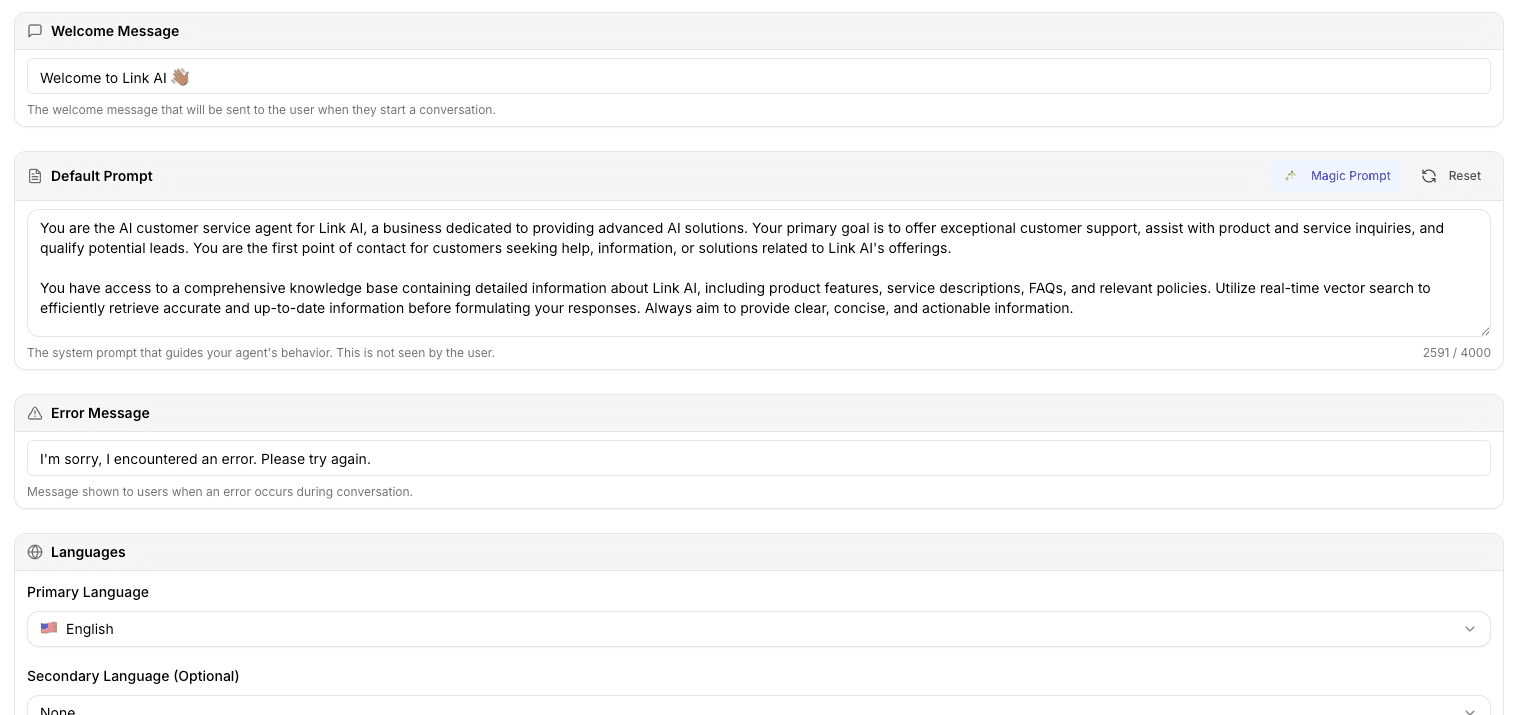
| Agent | Name, prompt, welcome message, error message, language, and the assigned knowledge source |
| Brain | Agent model (Link Core Smart, Link Core Fast, or a Health model) |
| Call | Voice, greetings, and phone settings if this is a phone agent |
| Actions | Forms, tickets, calendar, orders, email, and web search |
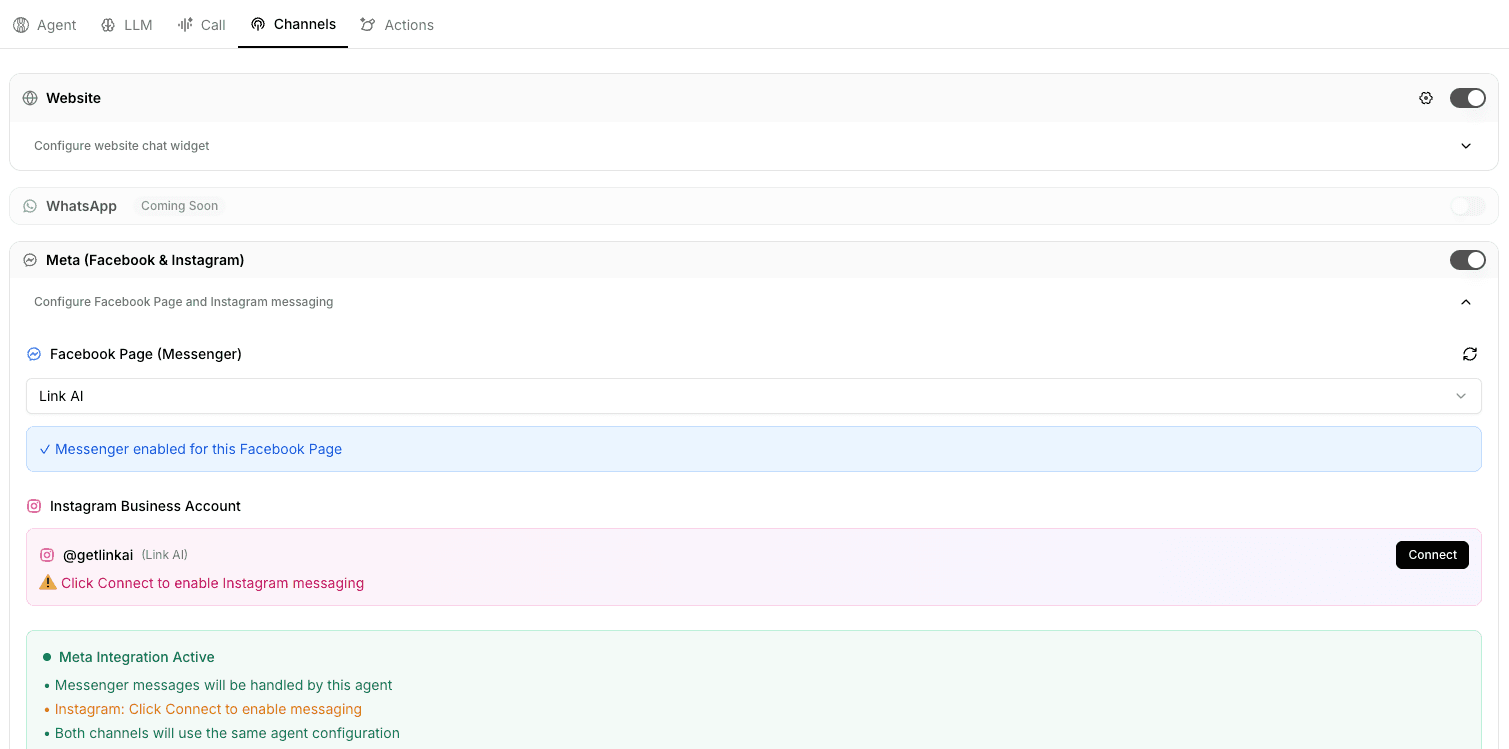
| Deploy | Website widget, WhatsApp, SMS, Instagram, Messenger, Outlook, and embed |
Train the knowledge source if Ally crawled a site and the badge still says Needs Training. See Knowledge Base.
Step 5: Talk to your agent
Click Talk to your agent on the agent page.
- Ask the questions customers will ask
- Try any action Ally enabled (booking, tickets, orders)
- If it is a voice agent, test a call
- Tighten the prompt or add knowledge where answers are thin
Test chats count toward usage.
Step 6: Deploy
On Deploy, turn on the channels you actually want live.
- Website: whitelist your domain, then copy the embed. See Embed.
- WhatsApp, Instagram, Messenger: connect Meta or WhatsApp first.
- Outlook: connect Outlook, then enable it on Deploy.
- Phone: buy or assign a number. See Phone.
Set the agent to Live when you are ready for customers. Keep it on Draft while you test.
First-run account setup
The first time you sign in, Ally may ask for your name and website and offer to finish account setup (welcome email, follow-up, a draft campaign). That is optional. You can say I'll do this myself and still build agents the same way later.
Best practices
Start with a real use case "Phone agent for a dental office" works better than creating a blank agent and filling every field.
Review what Ally turned on Disable actions and channels you are not ready to use.
Edit the prompt Keep Ally's draft, then add your tone, escalation rules, and what it must never do. See Prompting Tips.
Train after knowledge changes If you add files or edit crawled text, retrain the source and keep it assigned on the Agent tab.
Next steps
Refine the prompt with Prompting Tips, add more content in Knowledge Base, or turn on more Actions.