Connect your agent to WhatsApp Business to handle customer inquiries and send notifications.
Connect your business to the world's most popular messaging app. The WhatsApp integration for Link AI allows your agent to handle customer inquiries, send notifications, and manage support directly through WhatsApp Business.
Prerequisites
Before you begin, ensure you have:
- Growth or Scale plan - WhatsApp is available on Growth and Scale plans
- WhatsApp integration enabled - Must be enabled globally in Integrations page
- Phone number purchased - A phone number from Link AI
- Agent created - At least one agent configured in your account
Step-by-Step Setup Guide
Step 1: Enable WhatsApp Integration
- Navigate to Integrations page in your Link AI dashboard
- Find the WhatsApp integration card
- Toggle the switch to Enabled
- You'll see a success dialog with next steps
Note: This enables WhatsApp globally for your account. You'll still need to configure individual phone numbers and agents.
Step 2: Assign Phone Number to Agent
CRITICAL: This step must be completed BEFORE connecting WhatsApp to your phone number. Meta will send a verification code to your agent's inbox, so the phone number must be assigned first.
- Navigate to Agents page
- Select the agent you want to use for WhatsApp
- Go to the Call tab (see Phone configuration for details)
- Assign your phone number to the agent
- Save your changes
Step 3: Connect WhatsApp Business
- Navigate to Phone Numbers page
- Select the phone number you want to connect
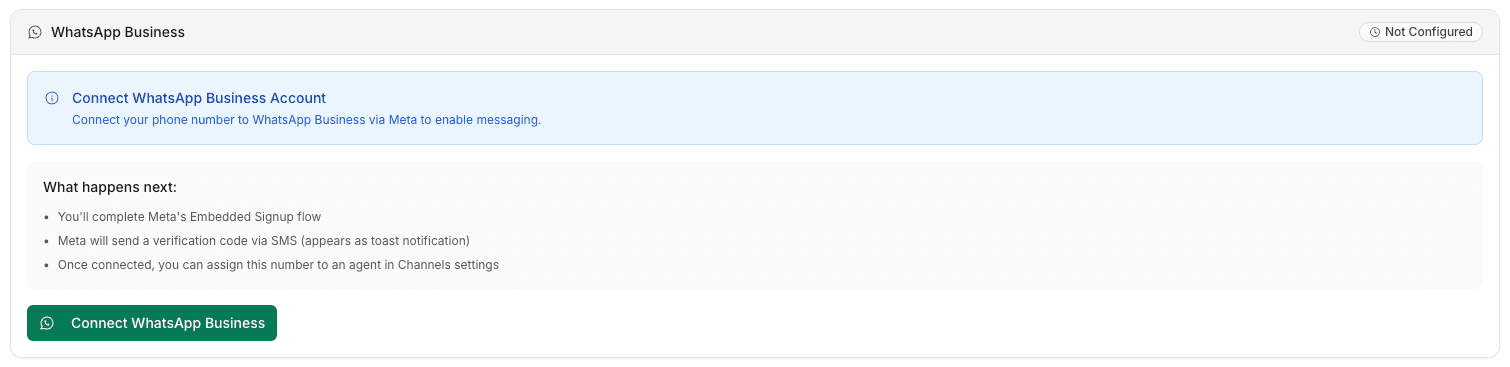
- Scroll to the WhatsApp Business card
- Open Step 1: Connect Account
- Review the warning if phone number is not assigned (see Step 2)
- Click Connect WhatsApp Business
- Complete Meta's Embedded Signup flow:
- Log in to your Meta account
- Select your Meta Business Account (or create a new one)
- Complete the WhatsApp Business Profile setup
- Grant necessary permissions
- Important: When prompted for verification method, select SMS option
- A verification code will be sent via SMS to your Link AI inbox
- The code will appear in two places:
- Link AI Inbox page - Check your inbox for the verification message
- Notification - You'll receive a notification with the code
Note: The phone number must be assigned to an agent (any agent is fine) for the verification code to be delivered to your inbox. If you haven't completed Step 2, the verification code will not appear.
Step 4: Register Phone Number
- After completing Meta signup, Step 2: Register Phone Number will become available
- Meta will send a 6-digit PIN code via SMS to your phone number
- Check your Link AI Inbox page for the verification code (it will also appear as a notification)
- Click Register with PIN button
- Enter the 6-digit PIN code you received
- Wait for registration to complete (may take a few moments)
Important: The verification code is sent to your Link AI inbox because the phone number is assigned to an agent. If you don't see the code, verify that the phone number is assigned to an agent in Step 2.
Note: It may take a few minutes to hours for WhatsApp to become fully available after registration. This is normal Meta provisioning time.
Step 5: Enable WhatsApp Channel
- Navigate to Agent Settings → Channels tab (see Channels documentation for details)
- Find the WhatsApp channel item
- Toggle the switch to Enabled
- Verify the phone number shows as enabled
Step 6: Test Your Integration
- Go back to Phone Numbers page
- Select your connected phone number
- Click Open WhatsApp button (next to Manage Profile)
- Send a test message to your phone number
- Verify your agent receives and responds to the message
Connection Flow Summary
The complete WhatsApp connection flow involves these steps:
- Enable WhatsApp Integration (Integrations page) → Global enable
- Assign Phone Number to Agent (Agents → Call tab) → Required for verification code
- Connect WhatsApp Business (Phone Numbers page) → Meta signup flow
- Register Phone Number (Phone Numbers page) → Enter PIN code
- Enable WhatsApp Channel (Agent Settings → Channels) → Per-agent enable
- Test → Send test message
Key Features
- Automated Messaging: Instant responses to customer inquiries on WhatsApp, 24/7
- Rich Media Support: Send and receive images, documents, and voice notes
- Agent Vision: With Agent Vision enabled, your agent can process and understand images sent by users
- Unified Support: Manage WhatsApp conversations alongside other channels in a single view
- Business Profile Integration: Your agent uses your WhatsApp Business profile information to ground its responses
Best Practices
- Get Business Verification: For higher messaging limits and trust, complete your Meta Business Verification
- Use Clear Greetings: Set a welcome message that clearly identifies the assistant and how it can help
- Monitor Quality Rating: WhatsApp monitors message quality; ensure your agent provides helpful, relevant responses to maintain a high rating
- Assign Phone Number First: Always assign phone number to agent before connecting WhatsApp to receive verification codes
Troubleshooting
Verification Code Not Received
Problem: You don't see the verification code after connecting WhatsApp.
Solution:
- Check your Link AI Inbox page - the code appears as a message
- Check your notifications - the code also appears as a notification
- Critical: Ensure the phone number is assigned to an agent (any agent is fine) - see Step 2
- Verify you selected SMS as the verification method during Meta signup
- Check that the phone number is active and not suspended
- Try disconnecting and reconnecting WhatsApp, making sure to select SMS verification
WhatsApp Not Available After Hours
Problem: WhatsApp still shows as pending or unavailable hours after registration.
Solution:
- This is normal - Meta provisioning can take minutes to hours
- Wait up to 24 hours for full availability
- Check the WhatsApp Status Card for current registration status
- Ensure PIN registration was completed successfully
Cannot Enable WhatsApp Channel
Problem: The WhatsApp toggle is disabled in Agent Settings → Channels.
Solution: Check all prerequisites:
- ✓ WhatsApp integration enabled (Integrations page)
- ✓ Phone number assigned to agent (Agents → Call tab)
- ✓ WhatsApp configured on phone number (Phone Numbers page)
- ✓ Phone number registration completed (entered PIN)
The toggle will show specific reasons why it's disabled:
- "Assign a phone number to this agent first" → Complete Step 2
- "Configure WhatsApp on the assigned phone number first" → Complete Steps 3-4
- "Enable WhatsApp integration first" → Complete Step 1
Phone Number Not Showing in Dropdown
Problem: Phone number doesn't appear when trying to enable WhatsApp channel.
Solution:
- Ensure WhatsApp is configured on the phone number (has metaWabaId)
- Check that phone number is assigned to the agent
- Verify phone number is active (not suspended or deleted)
Profile Not Syncing
Problem: WhatsApp Business Profile changes in Meta don't appear in Link AI.
Solution:
- Use the Refresh button in the Phone Numbers page WhatsApp card
- Or disconnect and reconnect WhatsApp to sync profile data
Common Issues
"Verification code not received"
→ Check agent inbox, ensure phone number assigned
"WhatsApp not available after hours"
→ Normal, Meta provisioning can take time
"Cannot enable WhatsApp channel"
→ Check all prerequisites (integration enabled, phone configured, assigned to agent)
"Phone number not showing in dropdown"
→ Ensure WhatsApp is configured on phone number
Additional Resources
- Meta WhatsApp Business Documentation
- WhatsApp Business Verification
- Link AI Phone Numbers Guide
- Channels Configuration
- Agent Configuration
Support
If you continue to experience issues after following this guide:
- Check the WhatsApp Status Card for specific error messages
- Review the numbered steps in Agent Settings → Channels for your current progress
- Contact support with:
- Phone number ID
- Agent ID
- Screenshot of error messages
- Steps you've completed