Phone
AI phone agents with natural voices, call recording, custom greetings, web voice widgets, and Inbox review. One agent across phone and every channel.
Give your agents a real phone line and a natural voice experience. Customers can call a dedicated number, talk to your agent in real time, and get the same knowledge and actions they would in chat, with richer voice controls, recordings, and review tools built in.
Overview
Phone is part of Link AI's unified voice stack. The same agent that handles web chat, WhatsApp, and other channels can also answer phone calls. When a customer dials your number, the call is routed to your agent, which joins the conversation with low-latency voice AI tuned for phone audio.
What's new
- SoftPhone: place outbound calls from the dashboard to a contact, ticket, or any number
- Call recordings with playback, download, and retention in the Inbox
- Expanded voice library: included and premium voices, plus custom voice design on Growth+
- Background noise for more natural, "in-office" call ambiance
- Custom call greetings with optional personalized welcomes for returning callers
- Voice widgets: embed voice-only or inline voice alongside your chat widget
- Inbox tools: call thread filter, recording player, message feedback, and conversation export
How phone integration works
- You purchase or assign a phone number in your workspace.
- You enable Voice mode on the agent and assign the number on the Call tab.
- An incoming call connects to your agent's voice session.
- The agent greets the caller, holds a natural conversation, and can run enabled actions (calendar, tickets, forms, transfers, and more).
- The conversation is saved to the Inbox as a call thread, with transcript, optional recording, and review tools.
The agent uses the same prompt, knowledge, and tools across channels. Phone-specific behavior (greeting, silence handling, recording, ambiance) is configured on the Call tab.
Voice mode requirement
Voice mode must be enabled before phone calls or web voice will work, even if a number is already assigned.
| Plan | Voice mode |
|---|---|
| Free trial | Available (Growth-level limits for testing) |
| Starter | Not available. Upgrade to Growth |
| Growth | Fully available |
| Scale | Fully available |
To enable voice mode
- Open your agent → Call tab
- Turn on Enable voice mode
- Configure voice, greeting, and call behavior (see below)
- Assign a phone number
Voice minutes are included per plan, with overage billing when you exceed your limit. Premium voices add a per-minute surcharge (see Voice library).
Setting up phone integration
Step 1: Get a phone number
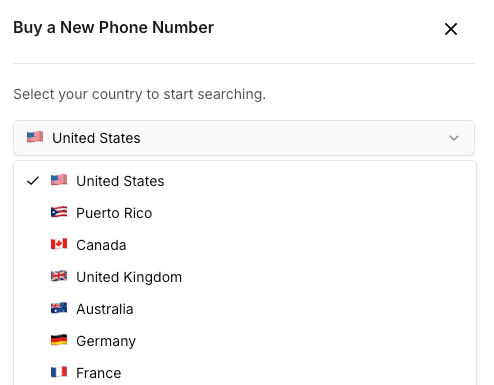
- Go to Phone Numbers in the dashboard
- Click Get New Number
- Choose country and area code
- Select a number (typically $1–8/month per number)
Phone numbers are workspace-scoped and billed with the workspace subscription. See Workspaces for multi-workspace setup.
Step 2: Configure voice on the Call tab
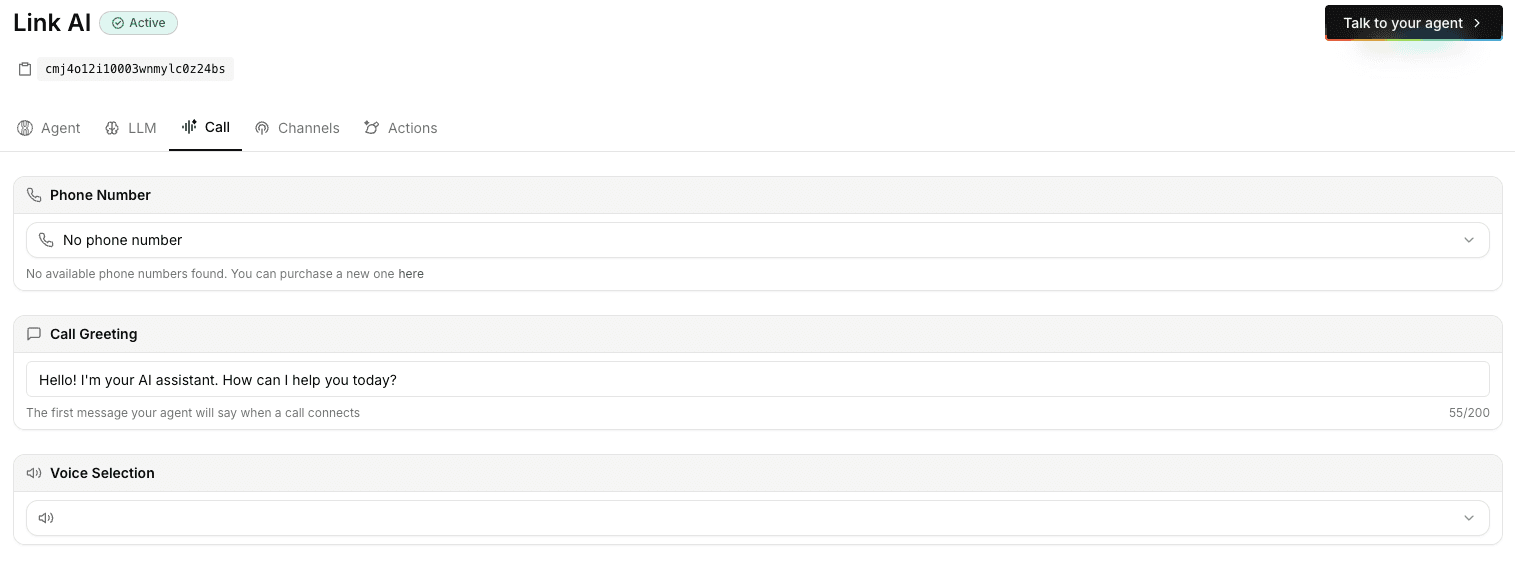
On your agent's Call tab:
- Enable voice mode
- Assign the phone number
- Choose a voice from the library (or design a custom voice on Growth+)
- Set your call greeting and optional personalized welcome
- Toggle background noise if you want a more natural call feel
- Enable call recording if your plan supports it
- Adjust call behavior (presence checks, silence timeout, max duration)
Use the Play control next to your greeting to preview how it sounds with your selected voice, including background noise when that option is on.
Step 3: Test
- Call the assigned number from a mobile and landline if possible
- Try interruptions, pauses, and a tool action (e.g. "Can you check availability?")
- Confirm the greeting, voice quality, and Inbox thread appear as expected
Voice & call settings
All of the following live on the agent Call tab.
Voice library
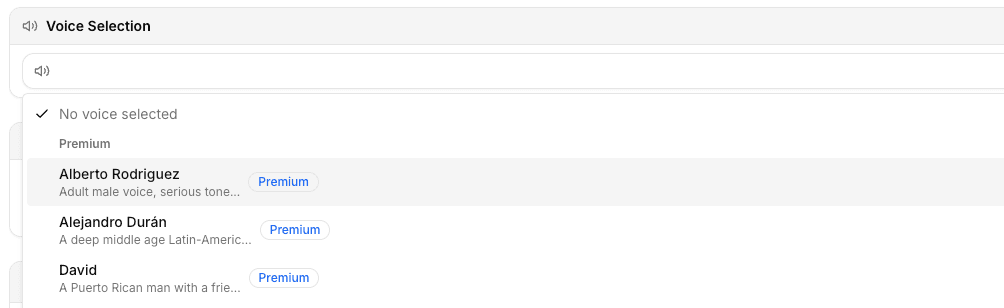
Open the voice selector to browse a large library of natural-sounding voices.
- Included voices: part of your plan's voice minute usage at the standard rate.
- Premium voices: higher-fidelity voices with an additional +$0.15/min surcharge on top of standard voice minutes.
Filters help you narrow by:
- Tier (Included / Premium)
- Gender
- Language (English, Spanish, French, Portuguese, German, Italian, Japanese, Chinese, Arabic, Hindi, and more)
Plan voice limits
| Plan | Saved voices |
|---|---|
| Starter | 1 (voice mode not available) |
| Growth | 3 |
| Scale | 6+ |
Design a custom voice (Growth+)
On Growth and Scale, you can create a voice tailored to your brand:
- Open the voice library → Create voice
- Describe the voice you want (tone, age, accent, energy)
- Listen to generated previews and pick your favorite
- Name and save the voice. It's selected on your agent immediately
Custom voice design is a paid feature on Growth and above.
Call greeting
Set the first thing your agent says when a call connects (up to 200 characters).
Examples:
- "Thanks for calling Acme Support. I'm Alex, your AI assistant. How can I help?"
- "Hi, you've reached Bright Dental. I can help with scheduling or general questions."
Use Play to hear the greeting with your current voice before going live.
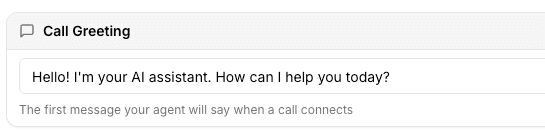
Personalized welcome
Turn on Personalized welcome so returning callers hear a greeting that uses their name and history when Link AI recognizes them. The agent may say "Welcome back" for repeat callers or a warm first-time greeting for new ones, without reading internal data aloud.
Works for phone and web voice when caller/contact context is available.
Background noise
Enable Background noise under Voice mode to add subtle office ambiance during calls. This makes AI voice feel less sterile and closer to a real phone experience.
- Applies to phone calls and web voice
- Included in the greeting preview when enabled
- Off by default. Turn on when it fits your brand
Call recording
Enable Record calls to save call audio to the Inbox and workspace memory.
| Plan | Call recording |
|---|---|
| Starter | Not available |
| Free trial, Growth, Scale | Available |
Retention
- Growth / Free trial: recordings kept for 90 days
- Scale: recordings kept for 180 days
After retention expires, the audio is removed automatically. The transcript remains in the thread.
Compliance: Recording laws vary by region. Some jurisdictions require all-party consent or an announcement at the start of the call. You are responsible for compliance with local laws.
Call behavior
Fine-tune how calls start, pause, and end:
| Setting | What it does |
|---|---|
| Check user presence | After silence, ask if the caller is still there |
| Presence check delay | How long to wait before the presence prompt (1–10s) |
| Presence message | Custom text, e.g. "Are you still there?" |
| Silence timeout | Max silence before hang-up (3–30s) |
| Hang up message | Spoken before ending a silent call (up to 60 chars) |
| Maximum call duration | Auto-end after a set length (30s–15 min) |
These settings help manage cost, avoid dead air, and keep conversations professional.
SoftPhone (outbound)
SoftPhone lets you place outbound calls from the dashboard using a workspace phone number. Use it to call a contact, follow up on a ticket, or dial any number, without leaving Link AI.
How to place a call
- Open Phone Numbers, a contact, or a ticket.
- Start SoftPhone. The dialer opens with a keypad and, when relevant, the contact already selected.
- Confirm the From number (a number on this workspace).
- Review the destination rate shown before you dial. Pricing is quoted per destination.
- Place the call. You can minimize SoftPhone and keep navigating. A floating bar keeps the live call.
The dialer matches the number to a workspace contact when it can, so you see the name and photo before you call.
During and after the call
- The call stays active if you move to another dashboard page. Expand it from the floating bar.
- The conversation is saved in the Inbox as an outbound call thread.
- When recording is enabled, audio is stored with the thread and in workspace memory, same as inbound calls.
SoftPhone uses the same voice-minute pool as inbound phone. Check included minutes and overage in Settings → Billing.
Web voice & widgets
Voice is not only for phone numbers. You can offer talk-to-agent on your website with the same voice, greeting, and settings.
Widget styles
In Widget configuration, choose a button style:
- Standard button: classic chat launcher
- Floating input: compact input bar
- Voice only: dedicated voice call button (no chat UI)
Embed options
On the agent Deploy tab, copy embed code for:
- Full widget: chat (and voice if enabled in the widget UI)
- Voice only: standalone voice button
Inline voice on your site
Place a voice button anywhere in your layout (hero, CTA row, or sidebar) without a floating corner widget:
<linkai-widget agent-id="YOUR_AGENT_ID" mode="voice-only" placement="inline"></linkai-widget>
Same page as chat: Keep your normal chat widget and add a second inline voice snippet. Load chatbot.js once per page.
Before embedding
- Enable voice on the Call tab
- Add every embed domain under Domain security
- Visitors see a one-time legal consent notice on first use (stored per agent in the browser)
Inbox & call review
Every phone call creates an Inbox thread with source Call. Use the Inbox to review, QA, and export conversations.
Call threads
- Filter by Call in the channel tabs
- See caller info, agent, timestamps, and full transcript
- Live transcript during the call; post-call transcription fills in gaps when needed
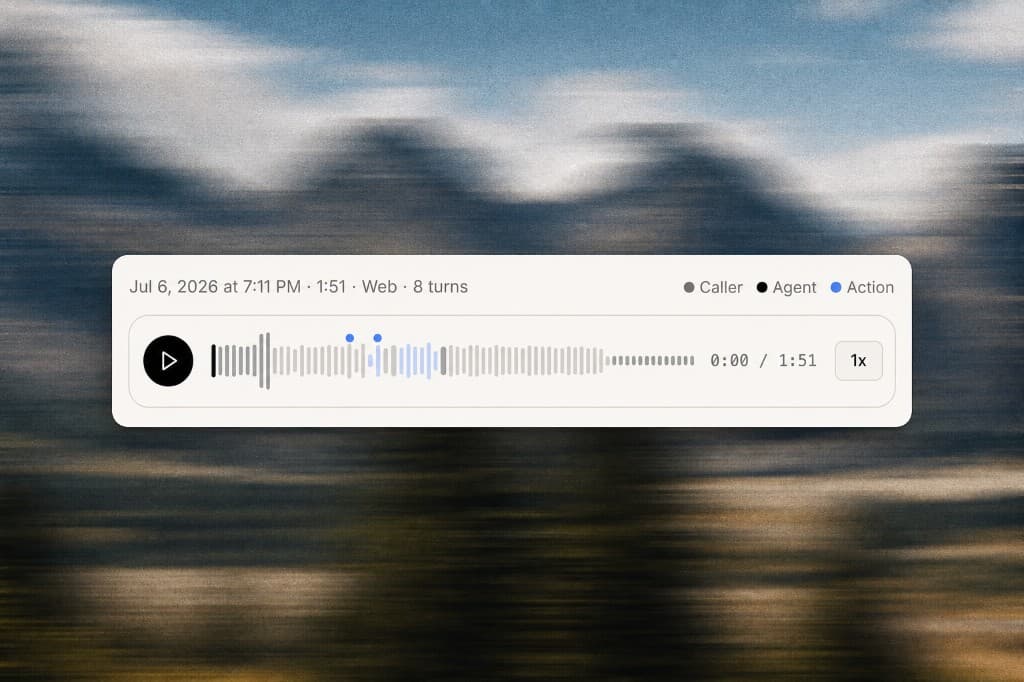
Recording player
When recording is enabled, the thread includes an audio player with:
- Waveform synced to the conversation
- Segments for caller, agent, and agent actions (tools)
- Playback speed (1x, 1.25x, 1.5x, 2x)
- Download the recording file
- Delete the recording (transcript stays)
A warning appears when a recording is within 7 days of expiry.
Message feedback
Review individual agent replies with thumbs up / thumbs down and optional comments (up to 500 characters). Use this to flag weak answers, document QA notes, and improve prompts over time.
Feedback is included when you export the conversation.
Export conversations
From the thread header, Export downloads a structured JSON file with:
- Thread and contact metadata
- Full message and tool timeline
- Voice session details (duration, numbers, recording status)
- Admin feedback ratings and comments
Useful for compliance archives, coaching, and integrations.
What your agent can do on a call
Phone calls support the same enabled actions as other channels, with voice-appropriate behavior:
- Calendar: check availability, book appointments
- Smart Forms: collect information conversationally
- Smart Tickets: create support tickets
- Orders: process with verbal confirmation
- Web search: look up live information with spoken progress updates
- Phone forwarding: transfer to a human when needed (see below)
During longer operations, the agent gives verbal progress cues ("Let me check that for you…") so callers aren't left in silence.
Phone forwarding
Phone forwarding is a phone-specific action for agents that are the first line on an incoming number.
Instead of "Press 1 for sales, Press 2 for support," the agent converses naturally, resolves what it can, and transfers only when appropriate: when the caller asks for a person or the issue requires it.
Configure forwarding rules in your agent's Actions tab. Rules can be saved before a number is assigned; they activate once a number is connected.
Pricing snapshot
| Item | Notes |
|---|---|
| Phone number | ~$1–8/month per number |
| Voice minutes | Included per plan; overage at plan rate |
| SoftPhone outbound | Quoted per destination in the dialer before you call |
| Premium voices | +$0.15/min on top of voice minutes |
| Call recording | Growth+ (90-day retention; 180 days on Scale) |
Check your plan in Settings → Billing for exact included minutes and limits.
Best practices
Optimize for phone
- Keep answers short and spoken-friendly
- Confirm actions verbally ("I've booked you for Tuesday at 2pm")
- Offer to text or email details when something is too long for voice
Sound human
- Pick a voice that matches your brand
- Write a concise, warm greeting
- Consider background noise for customer-facing lines
- Use personalized welcome for support lines with repeat callers
Record responsibly
- Enable recording only when you have a lawful basis
- Disclose recording where required
- Use Inbox export and retention settings for your compliance workflow
Test regularly
- Call from different devices and networks
- Test noisy environments
- Verify transfers, forms, and calendar actions end-to-end
Review and improve
- Scan Call threads weekly
- Use message feedback on weak replies
- Listen to recordings for tone, pacing, and accuracy
Troubleshooting
Call not connecting
- Voice mode enabled on the agent?
- Phone number assigned to the correct agent?
- Number active in Phone Numbers?
No audio / poor quality
- Test from another network
- Check device volume and Bluetooth routing
- Retry during off-peak hours to rule out local network issues
Agent not responding
- Agent published and not over voice minute limit?
- Greeting and voice selected?
- Review agent prompt for conflicting phone instructions
Recording missing
- Record calls enabled on the Call tab?
- Plan includes call recording (Growth+)?
- Recording may still be processing. Refresh the Inbox thread
- Expired or deleted recordings show a notice; transcript remains
Widget voice not working
- Voice mode enabled?
- Domain whitelisted?
- If using inline voice,
mode="voice-only"andplacement="inline"set correctly? chatbot.jsloaded once per page?
Call drops on silence
- Adjust silence timeout and presence check settings
- Increase maximum call duration if calls are ending too early
SoftPhone will not dial
- Is a workspace phone number active and selected as the From number?
- Did the destination quote succeed? Some numbers cannot be priced or dialed.
- Are you inside your voice-minute limit?
Next steps
- Smart Forms: collect structured data on calls
- Smart Tickets: escalate issues from voice
- Channels: run phone alongside chat, WhatsApp, and email
- Workspaces: separate numbers and agents per team