Smart Forms
Transform form collection into natural conversations, dramatically reducing abandonment rates and improving lead capture.
Traditional forms have a major problem: high abandonment rates. Customers start filling out forms but often leave before completing them, resulting in lost leads and missed opportunities.
Smart Forms solve this by transforming form collection into a natural conversation. Instead of presenting a static form that customers must fill out, your agent engages in a conversational flow, asking for required information naturally. The agent intelligently tracks what information has already been provided and won't ask for it again, creating a seamless experience that dramatically reduces abandonment.
Smart Forms are available across all channels—chat, voice, and phone calls—ensuring a consistent, conversational experience wherever your customers interact with your agent.
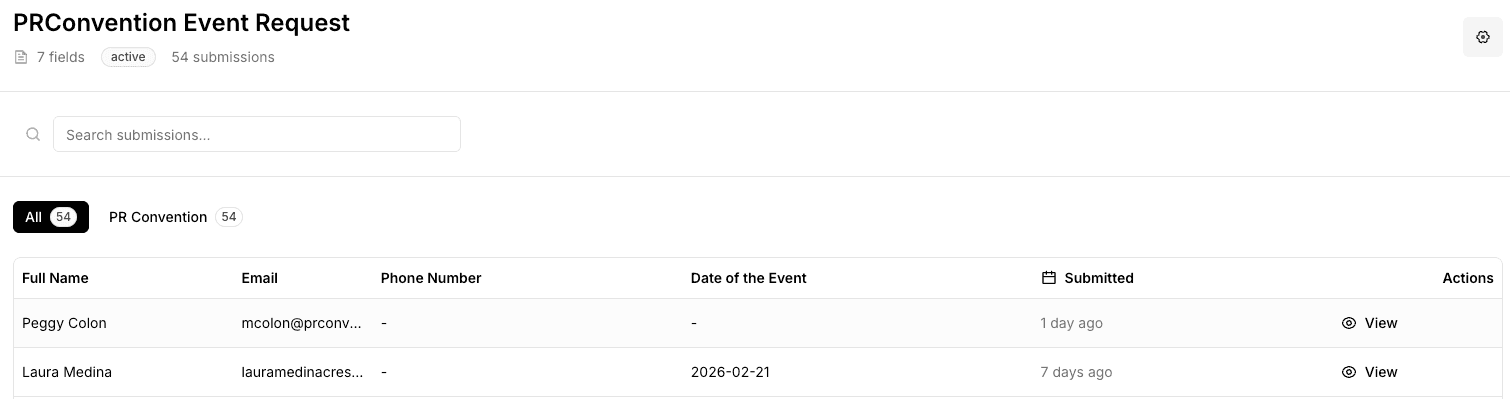
How Smart Forms Work
When a customer needs to provide information (e.g., event venue inquiries, pricing requests, contact information, preferences), your agent uses Smart Forms to collect the data through natural conversation. The agent:
- Asks questions conversationally - Instead of showing a form, the agent asks for information naturally, one piece at a time
- Tracks what's already provided - If a customer mentions their email during the conversation, the agent won't ask for it again when collecting form data
- Adapts to the channel - In voice channels, the agent asks one question at a time. In chat, it can collect multiple pieces of information more efficiently
- Only asks for required fields - The agent focuses on collecting only the information you've marked as required, making the process faster and less intrusive
This natural flow keeps customers engaged and dramatically reduces form abandonment compared to traditional static forms.
Note: Smart Forms are workspace-scoped. Each workspace can create and manage its own forms. Form submissions and data are stored within the workspace. Learn more about Workspaces.
Key Benefits
Reduced Abandonment By transforming forms into conversations, Smart Forms dramatically reduce abandonment rates. Customers stay engaged in a natural dialogue rather than facing a static form that feels like work.
Intelligent Information Tracking The agent remembers what customers have already shared. If someone mentions their email address early in the conversation, the agent won't ask for it again when collecting form data—creating a seamless, non-repetitive experience.
Channel Flexibility Smart Forms work identically across all channels. Whether customers interact via chat, voice, or phone, they get the same conversational form experience, ensuring consistency across touchpoints.
Faster Completion Since the agent only asks for required fields and skips information already provided, forms complete faster. Customers don't waste time re-entering information they've already shared.
Better User Experience Conversational forms feel natural and less intrusive than traditional forms. Customers feel like they're having a helpful conversation rather than filling out paperwork.
Setting Up Smart Forms
Step 1: Enable Smart Forms
- Navigate to your agent's configuration
- Go to the Actions section
- Enable Smart Forms
- Save your changes
Step 2: Create Forms
- Go to Smart Forms in your dashboard
- Click "Create Form"
- Give your form a name and description
- Add form fields:
- Field name
- Field type (text, email, phone, number, etc.)
- Mark fields as required or optional - This tells the agent which information it must collect
- Validation rules
The key to Smart Forms is clearly marking which fields are required. The agent will only ask for required fields, and will skip any information the customer has already provided during the conversation.
Step 3: Configure Form Instructions Write clear instructions that tell your agent when and how to use Smart Forms:
"When a customer wants to [specific action], use Smart Forms to collect: [list of required information]. Ask for one piece of information at a time in voice calls, or collect naturally in chat conversations. If the customer has already provided any of this information during our conversation, don't ask for it again."
Step 4: Assign Forms to Agent
- Go to your agent's Smart Forms configuration
- Select which forms this agent can use
- Configure form-specific instructions if needed
Step 5: Set Notification Emails
- Enter email addresses to receive form submissions
- Configure email templates if desired
- Set up auto-confirmation emails to customers (optional)
Step 6: Test Smart Forms
- Use the chat interface to trigger form collection
- Verify agent asks for all required fields
- Test form submission and notifications
- Verify data is stored correctly
Form Field Types
Text Collect general text information like names, addresses, or descriptions. Use for open-ended responses.
Email Collect email addresses with automatic validation. Ensures proper email format before submission.
Phone Collect phone numbers. Can include formatting preferences and validation rules.
Number Collect numeric values like quantities, prices, or IDs. Supports min/max validation.
Date Collect dates with automatic formatting. Supports various date formats and validation.
Select Provide predefined options for customers to choose from. Useful for categories, preferences, or statuses.
Best Practices
Keep Forms Simple Limit forms to essential information. Too many fields can frustrate customers, especially in voice interactions.
Use Clear Field Names Use descriptive field names that your agent can understand and communicate clearly to customers.
Provide Context In your form instructions, explain why you're collecting each piece of information. This helps your agent provide context to customers.
Test Voice Interactions Test forms in voice channels to ensure the flow works well. Voice forms require one question at a time, which takes longer than chat.
Handle Partial Submissions Configure what happens when customers don't complete forms. Consider saving partial data or sending reminders.
Form Collection Flow
The agent intelligently manages the form collection process, tracking what information has been provided and only asking for what's still needed.
In Chat Channels
- Customer indicates they want to submit information (e.g., "I would like to host an event on your venue" or "I would like to know a bit more about your prices")
- Agent identifies which form to use based on the request
- Agent checks what information has already been provided in the conversation
- Agent asks only for missing required fields, naturally through conversation
- Agent extracts data from customer responses, including information mentioned earlier
- Agent submits form automatically when all required fields are collected
In Voice Channels
- Customer indicates they want to submit information
- Agent identifies which form to use
- Agent checks conversation history for already-provided information
- Agent asks for one missing field at a time, skipping what's already known
- Agent waits for customer response before asking next field
- Agent confirms information before submitting
- Agent submits form when all required fields are collected
Intelligent Information Tracking The agent remembers information provided throughout the conversation. For example:
- If a customer says "My email is john@example.com" early in the conversation, the agent won't ask for it again when collecting form data
- If a customer mentions their name when introducing themselves, that information is automatically captured
- The agent only asks for information that hasn't been provided yet, creating a seamless experience
Form Submission Handling
Automatic Processing When a form is submitted:
- Form data is stored in your account
- Contact information is extracted and stored
- Notification emails are sent (if configured)
- Customer receives confirmation (if enabled)
Contact Extraction Smart Forms automatically extract contact information (name, email, phone) from form submissions and create or update contact records in your system.
Notifications Configure email notifications to:
- Alert your team when forms are submitted
- Send confirmations to customers
- Include form data in notifications
Troubleshooting
Agent Not Using Forms
- Verify Smart Forms is enabled for the agent
- Check form instructions are clear and specific
- Ensure forms are assigned to the agent
- Review system prompt for form usage guidance
Missing Fields
- Verify all required fields are clearly defined
- Check form instructions mention all required fields
- Test form collection to identify missing fields
- Update instructions to be more explicit
Form Submission Fails
- Check form configuration for errors
- Verify notification emails are valid
- Review error logs for specific issues
- Test form submission manually
Poor Collection Experience
- Simplify forms with fewer fields
- Improve form instructions for clarity
- Test in different channels to optimize flow
- Consider breaking complex forms into multiple simpler forms
Next Steps
Learn about Smart Tickets for handling customer issues, or explore Actions to see how Smart Forms work with other agent capabilities.