Work
Boards
Track leads, orders, projects, and tickets on boards where your agents and your team share the work.
Boards are where agents and people share work. Each item is linked to a customer, so you can see the conversation, the next step, and who owns it in one place.
Use boards for any process with stages: sales leads, a pipeline, projects, hiring, orders, or vendors.
How boards work
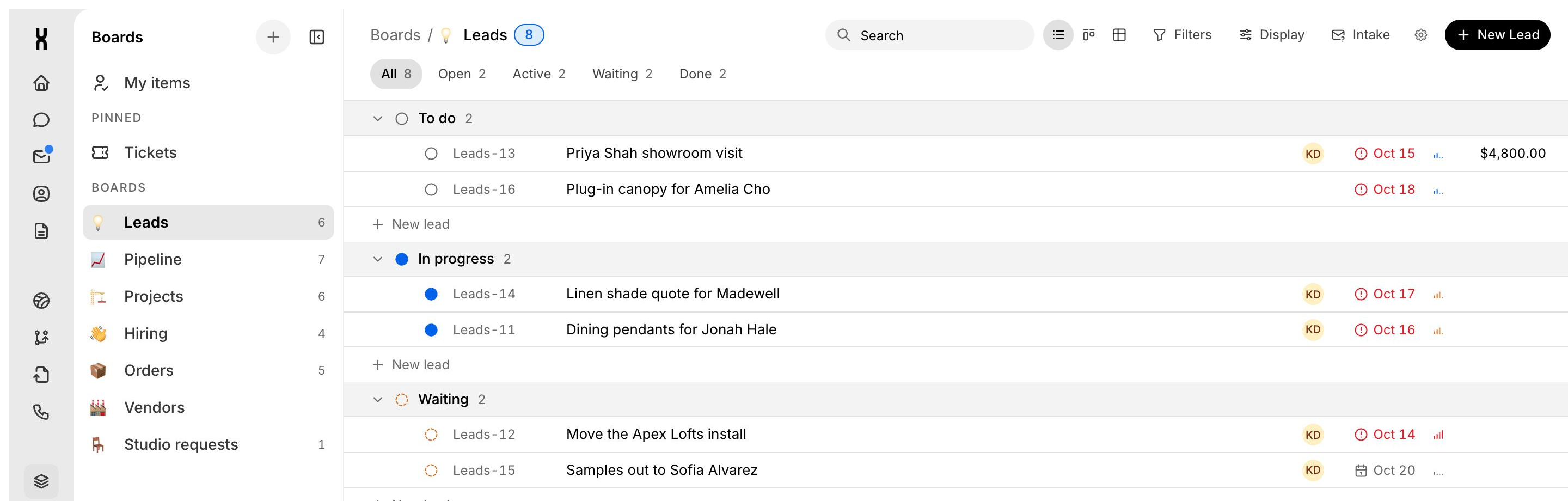
Open Boards under Work in the sidebar. The left list shows:
- My items: everything assigned to you, across all boards.
- Pinned: boards you keep at the top. Tickets is pinned by default. See Smart Tickets.
- Boards: every board in the workspace, like Leads, Pipeline, Projects, Hiring, Orders, and Vendors, each with an item count.
The board view
A board groups items by status:
Use the tabs All, Open, Active, Waiting, and Done to narrow the view. The toolbar has:
- Filters to narrow items by field.
- Display to change how items are shown.
- Intake to set how new items arrive on the board.
- New item to add an item. The button uses the board's item name, like New Lead on Leads.
Each item card shows its ID (like Leads-13), title, assignee, due date, and amount. Overdue items are flagged.
The item drawer
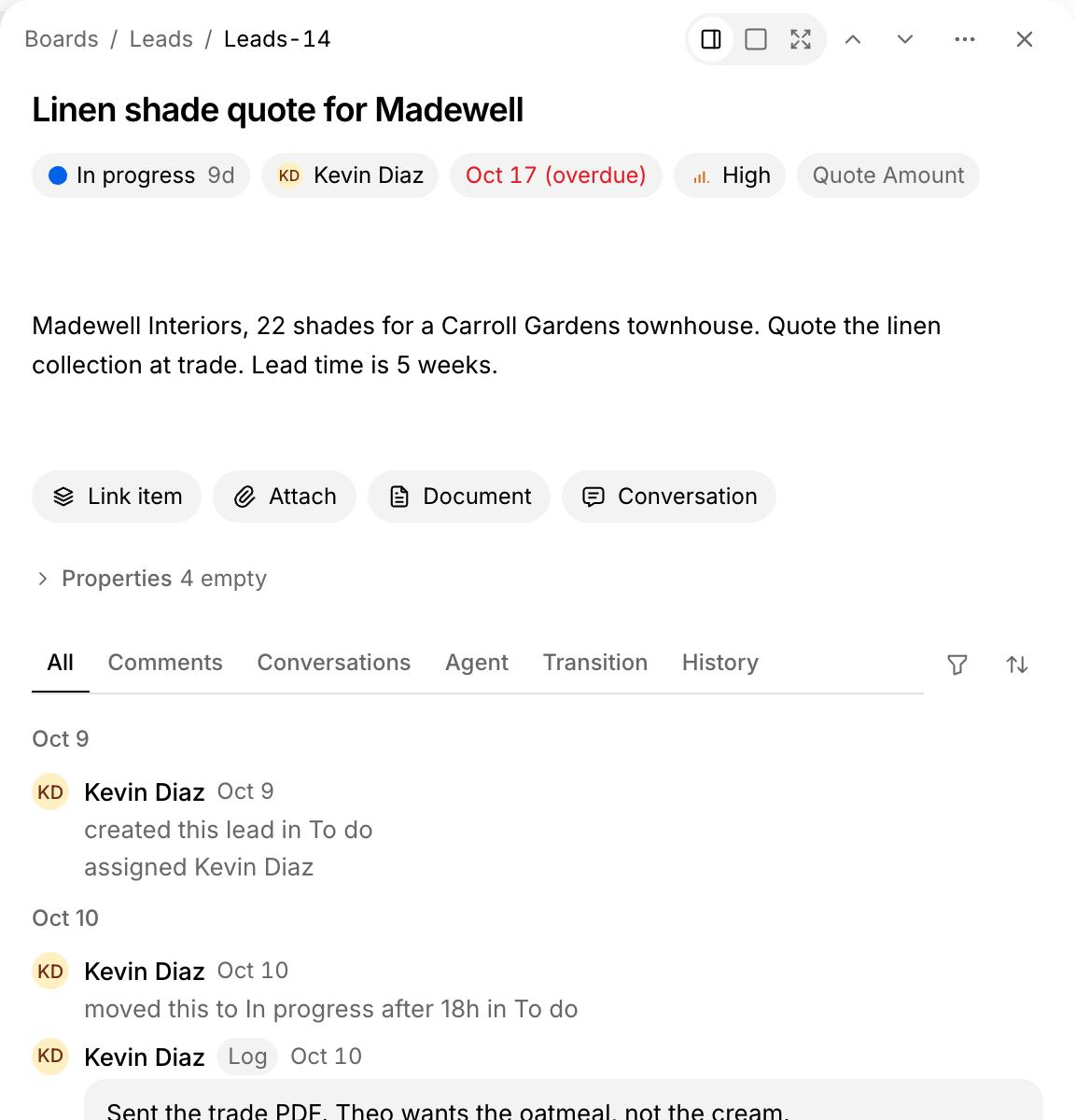
Click an item to open its drawer.
How agents work on boards
Agents create and update items from conversations. A typical run: a customer texts, your agent answers, your agent updates the lead item, and a teammate approves the reply.
Procedures can also start from board events, like a new item or a status change. Pick a board in the procedure editor to connect them.
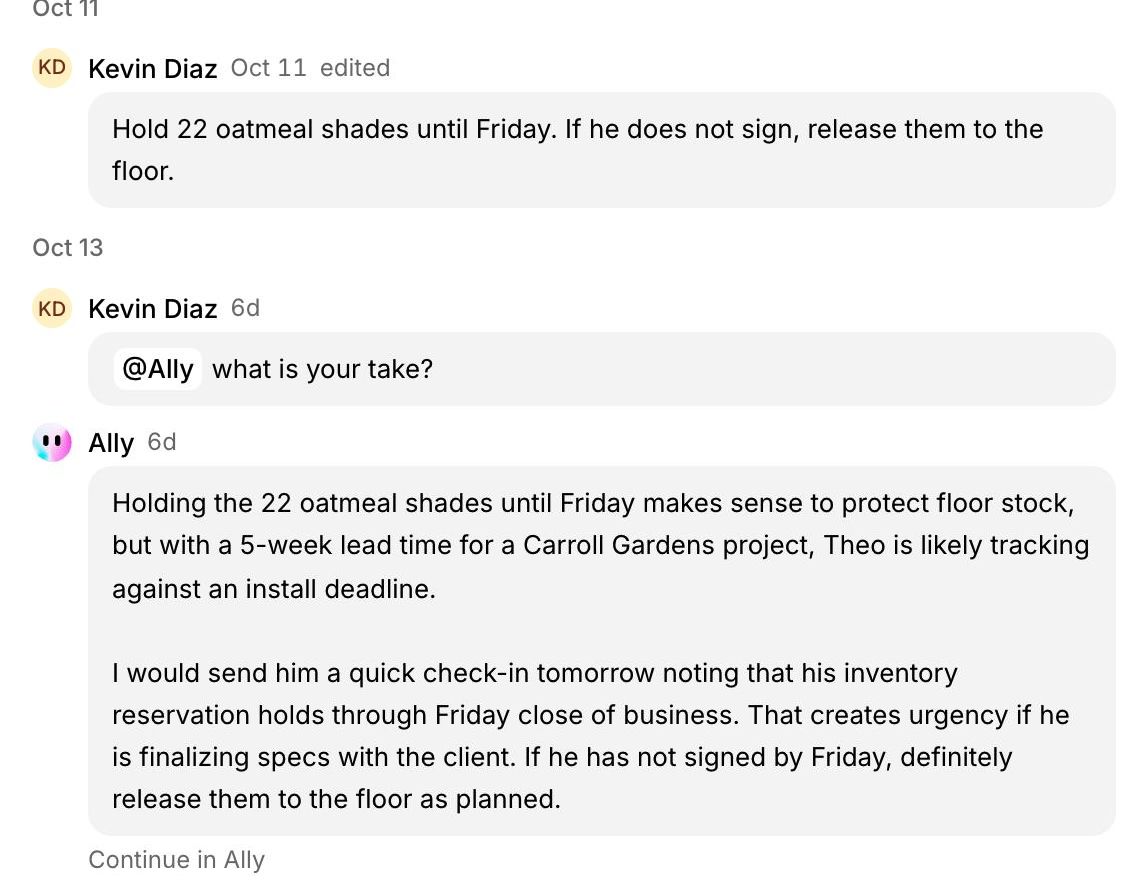
Mention @Ally in a comment to ask for a summary, a draft reply, or a next step. Ally replies in the thread. See Ally.
Create a board
You should see the new board in the left list with a count of 0.
Add an item
You should see the item under To do with its new ID.